Most beginners try to skip networking. It feels abstract and full of confusing words. But here is the truth — almost every real production problem has networking involved somewhere. Think about it. When your app cannot reach its database — that is a networking problem. When SSH will not connect to your server — networking. When the deployment pipeline cannot pull a Docker image — networking. When users see a "502 Bad Gateway" error — networking. If you do not understand networking, you will spend hours debugging problems that should take 5 minutes to fix. The good news is you do not need to become a network engineer. You just need to understand the fundamentals well enough to know what is happening and which tool to use. That is exactly what this module gives you. 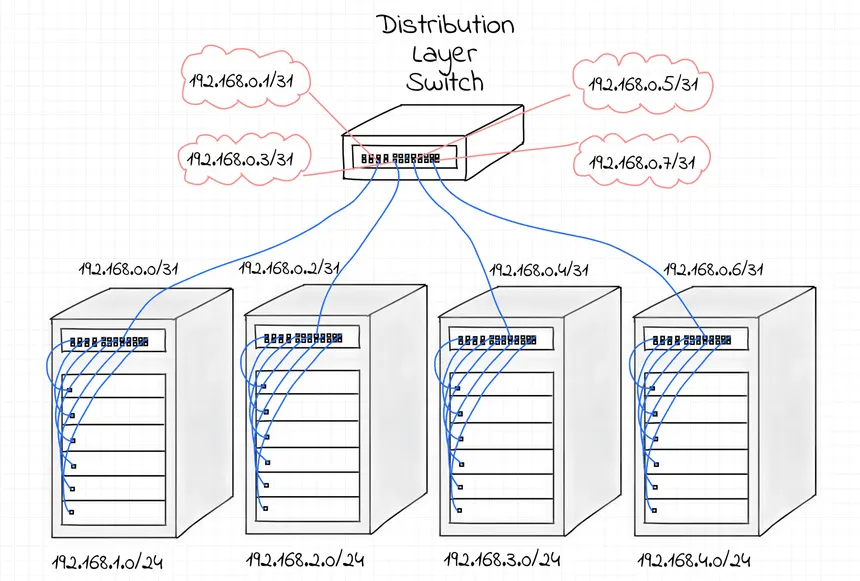 ### What You Actually Do With Networking as a DevOps Engineer Here is what real networking work looks like on the job: ``` Setting up a new server: → Assign an IP address and hostname → Set up SSH key access so you can connect securely → Open firewall ports: 80 for HTTP, 443 for HTTPS, 22 for SSH → Test everything is reachable with ping and curl Deploying an application: → Configure nginx to forward web traffic to your app → Point your domain name to the server IP using DNS → Debug why the app cannot talk to the database → Check which ports are open: ss -tulpn Debugging a live issue at 2am: → "Connection refused" → Is the app even running? Wrong port? → "Network unreachable" → Routing problem? Wrong subnet? → "DNS resolution failed" → DNS config broken? → Trace it step by step: ping → traceroute → curl -v ``` Every single line above is networking. Once you learn this module, all of those problems become solvable quickly and confidently. ### The Big Picture — What Happens When You Visit a Website Before we get into details, here is the full journey of a simple web request. Every step maps to a concept in this module. ``` You type: google.com and press Enter ↓ Your browser asks DNS: "What is the IP address for google.com?" ↓ DNS replies: "The IP is 142.250.185.46" ↓ Browser connects to 142.250.185.46 on port 443 (HTTPS) ↓ Request travels: Your laptop → Router → ISP → Internet → Google's server ↓ Google's server sends back HTML, CSS, JavaScript ↓ Your browser renders the page you see ``` This entire journey happens in less than 100 milliseconds. By the end of this module, you will understand each step completely. ### What This Module Covers | Topic | What You Learn | Why It Matters | |---|---|---| | OSI & TCP/IP Models | How the layers of networking work | Debug at the right layer | | IP Addresses & Subnets | How every device gets an address | Configure servers and cloud correctly | | DNS | How names become IP addresses | Fix connection and domain failures | | Network Devices | Switches, routers, firewalls | Understand cloud infrastructure | | Protocols | HTTP, TCP, UDP, SSH and more | Know which protocol does what | | Linux Commands | ping, curl, netstat, dig, traceroute | Diagnose any problem on any server | | Security | Firewalls, TLS, SSH hardening | Keep your infrastructure safe | ### The Real Cost of Not Knowing Networking A junior engineer deploys a Node.js app to an EC2 instance. The app runs fine locally. On the server, `systemctl status myapp` shows it is running. But users get "This site can't be reached." The engineer spends 4 hours checking app code, reinstalling packages, rebooting. The actual problem? The app was listening on `127.0.0.1:3000` instead of `0.0.0.0:3000`. One line of networking knowledge. Four hours lost. A second scenario: the database connection keeps timing out in production but works locally. Two hours later someone notices the database security group only allows connections from the same VPC — and the new server is in a different subnet. These are not rare edge cases. They happen constantly. And every single one is obvious once you understand networking. -
The OSI model is the most important framework to understand in networking. It does not describe a specific technology — it describes a way of thinking about how communication is organised. Once you understand it, debugging network problems becomes much more systematic. OSI stands for Open Systems Interconnection. Think of it like sending a physical package through a courier service. There are different departments — packing, labelling, transportation, delivery. Each department has a specific job and does not need to know how the others work internally. That separation is exactly how the OSI model works. When you send data, it travels down through all 7 layers on your side, crosses the network, then travels back up through all 7 layers on the other side. 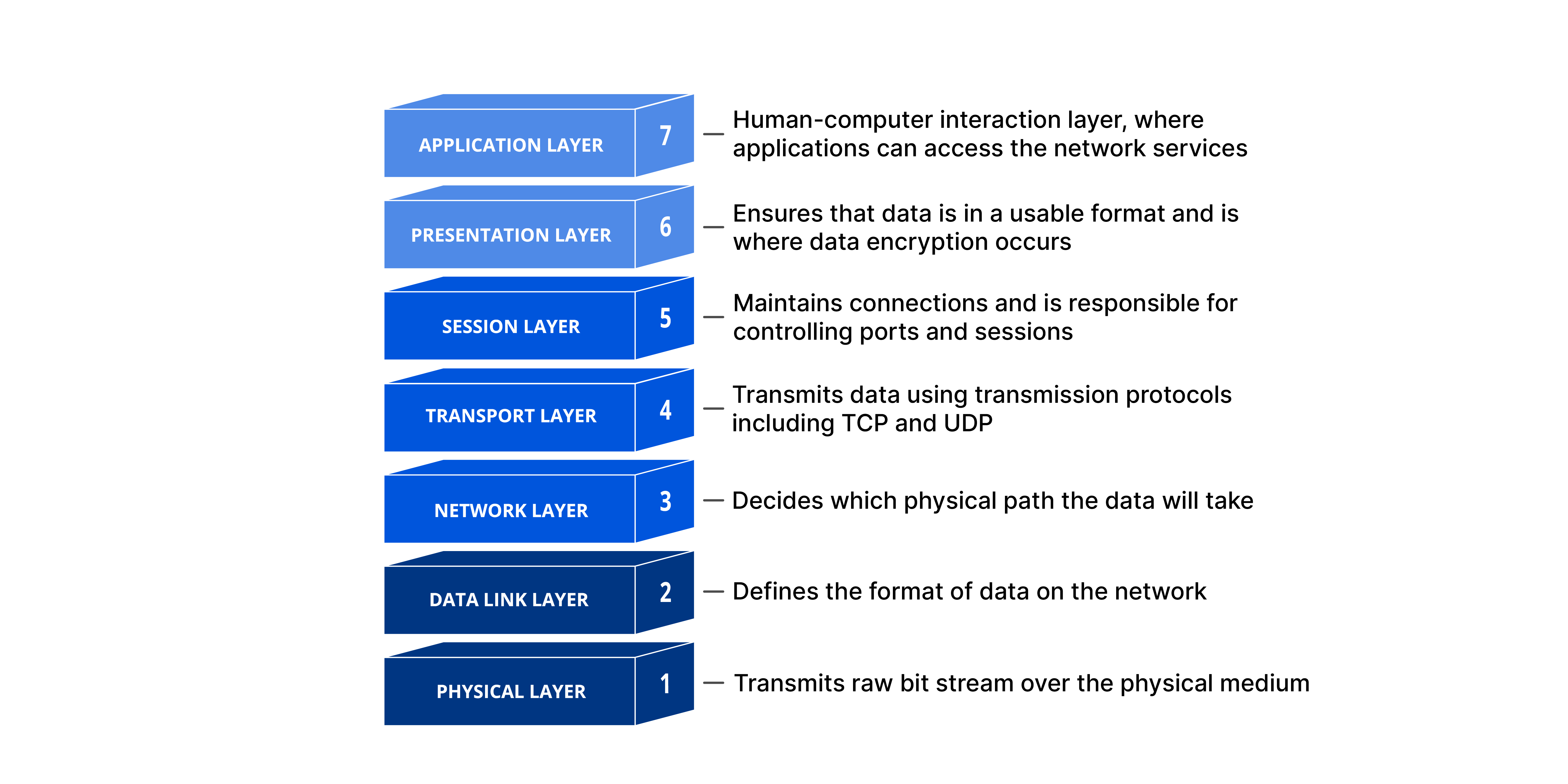 ``` SENDER SIDE RECEIVER SIDE 7. Application ←— your app —→ 7. Application 6. Presentation ←— encrypt —→ 6. Presentation 5. Session ←— connection—→ 5. Session 4. Transport ←— TCP/UDP —→ 4. Transport 3. Network ←— IP/route —→ 3. Network 2. Data Link ←— MAC/local—→ 2. Data Link 1. Physical ======================== 1. Physical (cable / Wi-Fi signal) ``` ### Layer 1 — Physical (The Wire) The bottom layer — actual hardware. Electrical signals through copper cables, light pulses through fibre optic, or radio waves for Wi-Fi. At this layer everything is raw bits — zeros and ones. No meaning, no addresses. 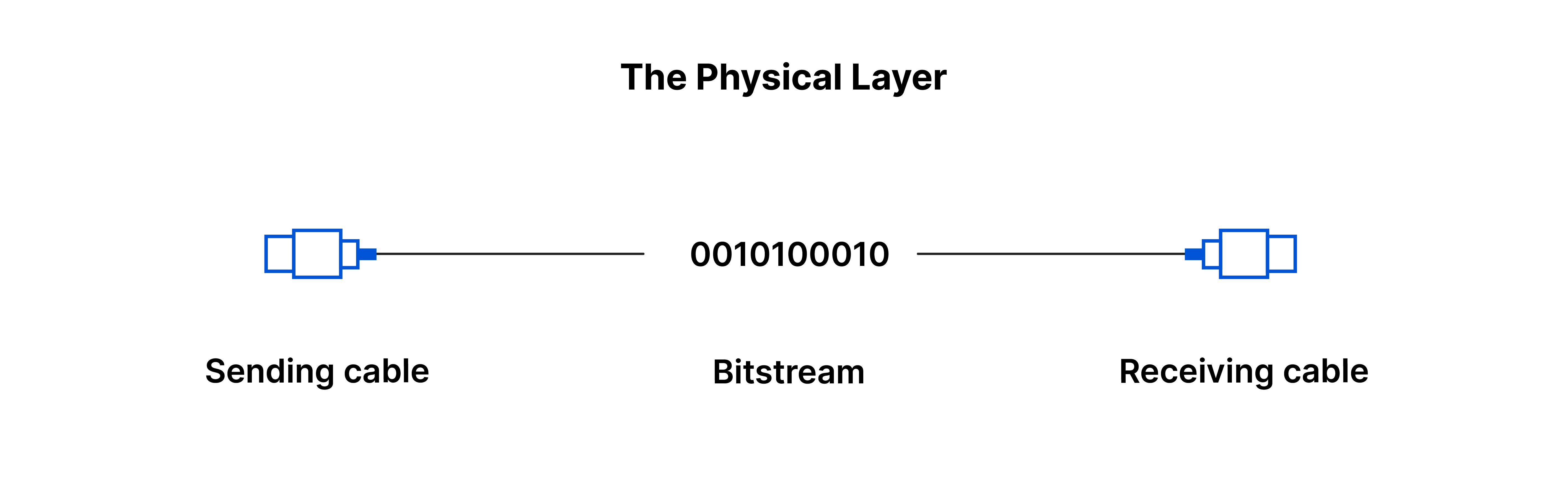 - Devices here: cables, network cards (NIC), Wi-Fi antennas, hubs - Problems here: unplugged cable, broken NIC, Wi-Fi interference - You cannot fix Layer 1 with software — it is a physical problem - Data unit: **Bits** ### Layer 2 — Data Link (MAC Addresses) Handles communication between devices on the same local network. Uses MAC addresses — unique hardware addresses burned into every network card at the factory. They look like `00:1A:2B:3C:4D:5E`. 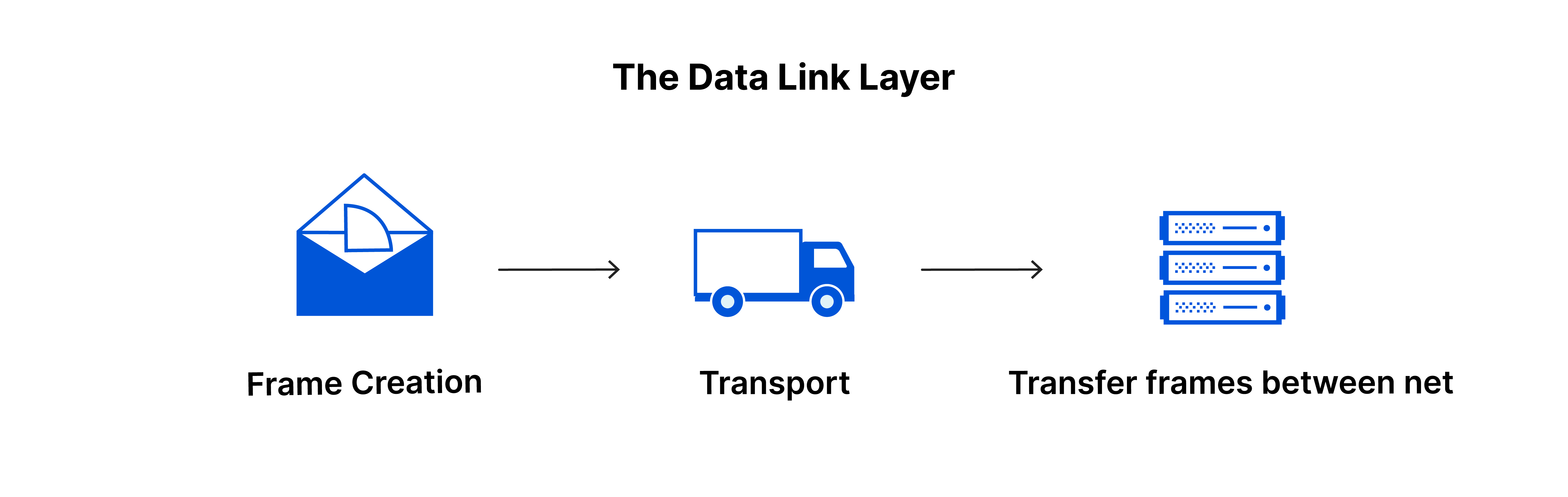 A switch keeps a table of "which MAC address is on which port" and sends data only to the correct device — not to everyone like a hub does. - Devices here: switches, bridges - Problems here: duplicate MAC addresses, switch misconfiguration - Data unit: **Frames** ### Layer 3 — Network (IP Addresses) Where IP addresses live and where routing happens. Responsible for getting data from one network to another — across the internet if needed. 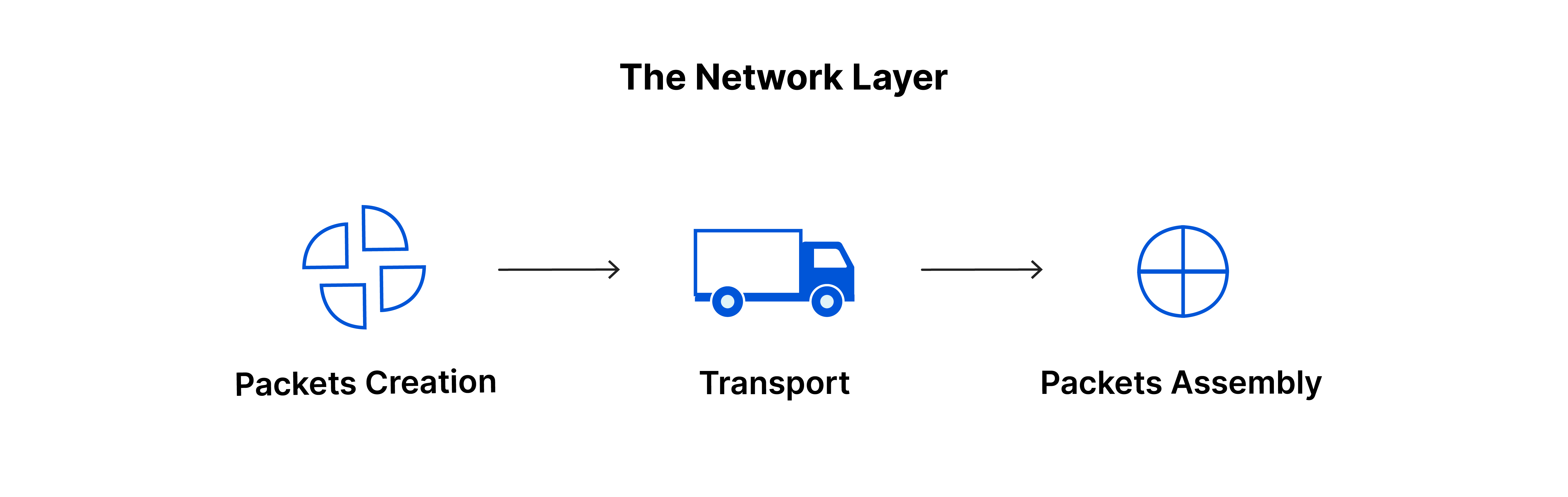 ``` MAC address = "who you are physically" (hardcoded into hardware) IP address = "where you are logically" (assigned, can change) Routers read IP addresses and decide where to forward data next. Each router hands the packet to the next until it reaches the destination. ``` - Devices here: routers - Problems here: wrong IP, wrong subnet mask, routing table misconfiguration - Data unit: **Packets** ### Layer 4 — Transport (TCP & UDP, Ports) Handles end-to-end delivery between two specific applications. Introduces port numbers so data reaches the right app, and the choice between TCP (reliable) or UDP (fast). 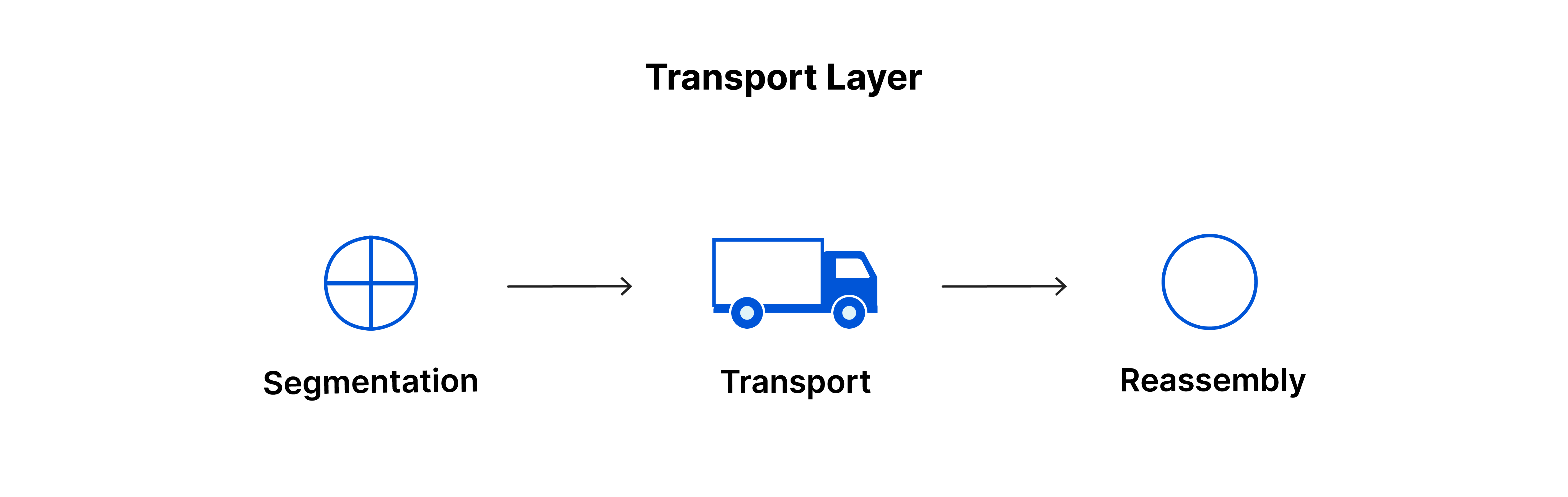 ``` Port 22 → SSH Port 80 → HTTP Port 443 → HTTPS Port 5432 → PostgreSQL Port 3306 → MySQL Port 6379 → Redis Port 27017 → MongoDB IP gets you to the machine. Port gets you to the right app on that machine. ``` - Problems here: port not open, firewall blocking port, wrong protocol - Data unit: **Segments** ### Layers 5, 6, 7 — Session, Presentation, Application These upper layers deal with the application itself: **Session (5):** Manages the connection lifespan — opening, keeping alive, and closing. If you download a 2 GB file and the connection drops at 1.5 GB, the session layer is responsible for checkpointing so you can resume rather than restart. **Presentation (6):** Three jobs — encryption/decryption (TLS/SSL lives here, which is why HTTPS exists), compression, and data format conversion. The padlock in your browser means Layer 6 is encrypting your traffic. **Application (7):** The actual protocol your app uses — HTTP, FTP, DNS, SMTP, SSH. This is the language both client and server agree to speak. Layer 7 defines what a valid request looks like, what commands are allowed, and how errors are reported. ### OSI Model Quick Reference | Layer | Name | Address Used | Key Protocols / Devices | Data Unit | |---|---|---|---|---| | 7 | Application | — | HTTP, FTP, DNS, SSH, SMTP | Data | | 6 | Presentation | — | TLS/SSL, gzip, JPEG, UTF-8 | Data | | 5 | Session | — | NetBIOS, RPC | Data | | 4 | Transport | Port numbers | TCP, UDP | Segments | | 3 | Network | IP address | Routers, ICMP | Packets | | 2 | Data Link | MAC address | Switches, Bridges | Frames | | 1 | Physical | — | Cables, NICs, Wi-Fi | Bits | ### How to Use OSI for Debugging — The Real Value Work through layers bottom to top. You will find it every time. ``` Problem: "I cannot connect to the database" Layer 1: Is the server powered on and connected? → ping the server IP. If ping fails completely, check physical. Layer 3: Can I reach the server's IP at all? → ping db-server-ip → If ping works, the network path is fine. Layer 4: Is the database port open and listening? → ss -tulpn | grep 5432 → Is a firewall blocking port 5432? Layer 7: Is the database service actually running? → systemctl status postgresql → Are the credentials correct? ``` You just saved yourself 2 hours of random guessing. Work layer by layer — every time. ### TCP/IP Model — What the Internet Actually Runs On The TCP/IP model is a simplified 4-layer version of OSI. It is what the actual internet is built on. TCP/IP was built from real working protocols already running the internet, then documented. OSI was theoretical first. That is why TCP/IP won. ``` OSI (7 layers) TCP/IP (4 layers) ------------------ ---------------------------------- 7. Application 6. Presentation Application Layer 5. Session (HTTP, FTP, SSH, DNS, SMTP, TLS) ------------------ ---------------------------------- 4. Transport Transport Layer (TCP, UDP) ------------------ ---------------------------------- 3. Network Internet Layer (IP, ICMP) ------------------ ---------------------------------- 2. Data Link Network Access Layer 1. Physical (Ethernet, Wi-Fi, cables, MAC) ``` ### TCP vs UDP — The Most Important Protocol Choice These two protocols are your choice when deciding how data gets delivered. Pick wrong and your app will be either too slow or lose data. 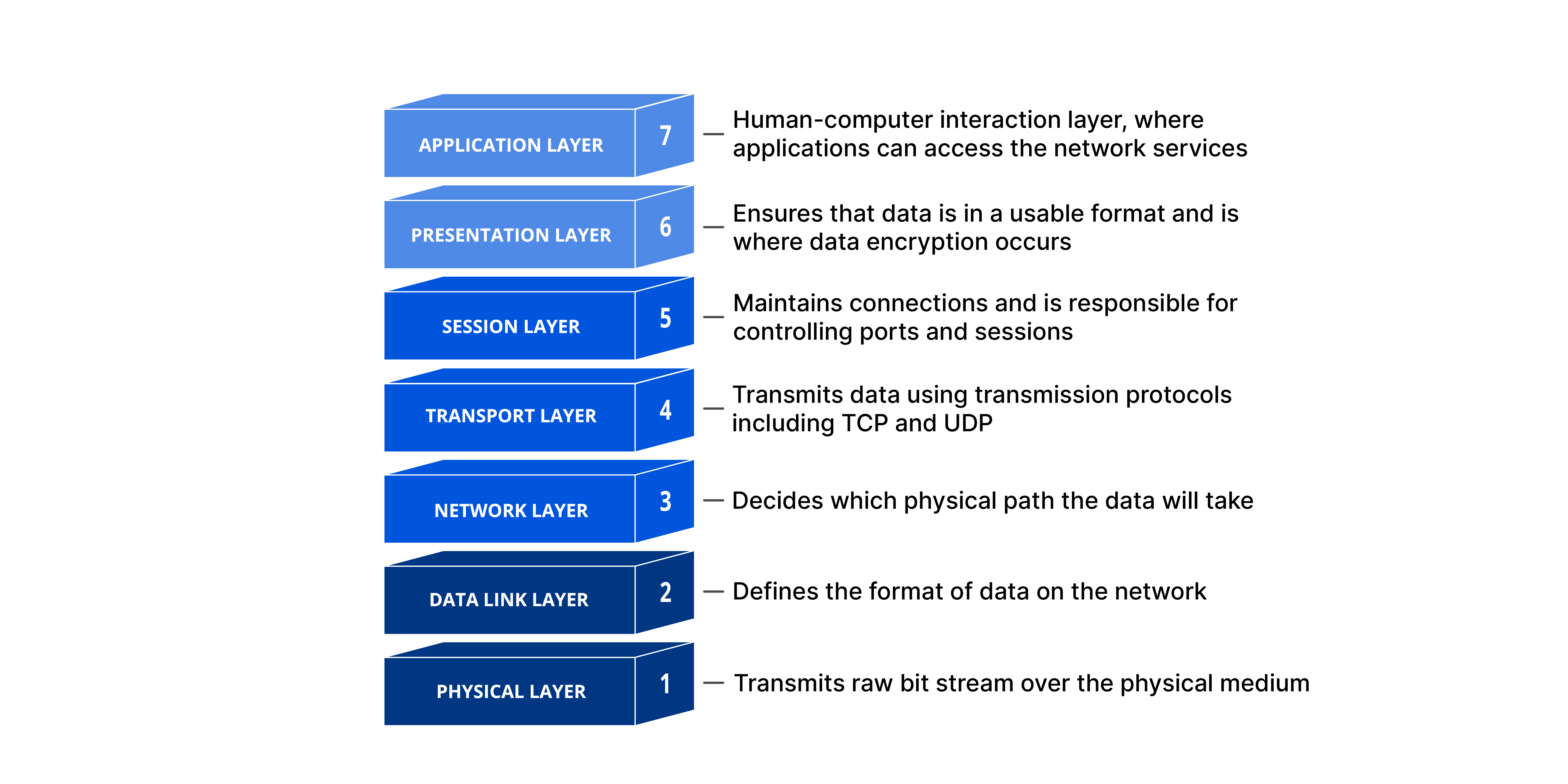 **TCP — Transmission Control Protocol (the careful one)** Before sending anything, TCP does a 3-way handshake to establish a connection: ``` Client Server | | |--- SYN ------→ | "Hey, can we talk?" | ←-- SYN-ACK -- | "Yes, ready!" |--- ACK ------→ | "Great, let's go." | | [ data transfer begins — every packet acknowledged ] ``` - Every packet is acknowledged — if no ACK received, it resends - Data arrives in order, no duplicates, no missing pieces - Slower because of the handshake and acknowledgments - Use for: web pages, file downloads, emails, database queries, SSH **UDP — User Datagram Protocol (the fast one)** UDP just sends data. No handshake, no acknowledgment, no ordering guarantee. ``` Client Server | | |--- data ------→ | |--- data ------→ | (some might not arrive — UDP does not care) |--- data ------→ | ``` - No connection setup, no acknowledgment, packets may arrive out of order - Much faster, lower latency, less bandwidth - Use for: video streaming, online gaming, DNS lookups, VoIP calls ``` Simple analogy: TCP = Registered mail. Signature confirmation. If not delivered, they resend. Slower but guaranteed. UDP = Dropping leaflets from a plane. Some land, some blow away. Fast but no guarantee. ``` | Feature | TCP | UDP | |---|---|---| | Connection | Required (3-way handshake) | None | | Reliability | Guaranteed delivery | No guarantee | | Ordering | Guaranteed in-order | Not guaranteed | | Speed | Slower | Faster | | Use Cases | HTTP, SSH, email, databases | Streaming, gaming, DNS, VoIP | -
Every device on a network needs an address. Without addresses, there is no way to know where to send data. This is critical daily knowledge — every time you launch a cloud server, configure a VPC, set up a load balancer, or debug "connection refused" — you are working with IP addresses. ### What is an IP Address An IP address is a unique identifier for a device on a network — like a postal address for your computer. The most common type is IPv4 — a 32-bit number written as four groups of numbers separated by dots: ``` 192 . 168 . 1 . 100 | | | | Network Network Network Device (first three groups identify the network) (last group = specific device on that network) Each number: 0 to 255 Total possible IPv4 addresses: about 4 billion ``` ### Public vs Private IP Addresses | Type | Range | Where You See It | |---|---|---| | Private | `10.0.0.0 – 10.255.255.255` | AWS VPCs, large company networks | | Private | `172.16.0.0 – 172.31.255.255` | Medium private networks | | Private | `192.168.0.0 – 192.168.255.255` | Your home Wi-Fi | | Loopback | `127.0.0.1` | Always means "this machine itself" (localhost) | | Public | Everything else | Addresses on the real internet | When you SSH into an AWS EC2 instance from your laptop you use its public IP. When your app talks to its database inside AWS they use private IPs. Your home router has one public IP and gives private IPs (192.168.1.x) to all your devices. ### Subnets and CIDR A subnet is a smaller chunk of a larger network. You divide networks into subnets to organise devices, isolate systems, and control which devices can talk to each other. CIDR notation is how you write a subnet — IP address followed by a `/number`: ``` 10.0.1.0/24 10.0.1.0 = the network address /24 = the first 24 bits identify the NETWORK the remaining 8 bits identify DEVICES /24 gives you: 2^8 = 256 addresses minus 2 (network + broadcast addresses) = 254 usable hosts in this subnet Common CIDR sizes: /32 = 1 address (a single specific host) /30 = 4 addresses, 2 usable (point-to-point links) /28 = 16 addresses, 14 usable /24 = 256 addresses, 254 usable ← most common subnet /16 = 65,536 addresses ← VPC level in AWS /8 = 16 million addresses ``` Real AWS VPC example: ``` VPC: 10.0.0.0/16 (65,536 IPs — the whole space) | +----+-----------------------------+ | | 10.0.1.0/24 10.0.2.0/24 (Public subnet) (Private subnet) Web servers App servers + Databases Can reach internet Cannot reach internet directly ``` This separation keeps databases safe from direct internet access — a fundamental security practice in every cloud architecture. ### IPv6 — The Newer System IPv4 ran out of addresses. IPv6 fixes this: ``` IPv4: 192.168.1.100 (32 bits, ~4 billion addresses) IPv6: 2001:0db8:85a3::8a2e:0370:7334 (128 bits, 340 undecillion addresses) ``` You will see IPv6 in modern cloud environments. IPv4 is still primary for most DevOps work. ```bash ip addr show # All network interfaces and their IPs hostname -I # Quick list of all your IPs curl -s https://ifconfig.me # Your public IP as seen from the internet ``` ### DNS — How Names Become Addresses DNS (Domain Name System) is the internet's phone book. You give it `google.com` and it returns `142.250.185.46`. Without DNS you would need to memorise the IP of every site you visit. #### The DNS Resolution Journey ``` Step 1 — Browser cache "Have I looked this up recently?" Yes → use cached IP immediately Step 2 — /etc/hosts check Linux checks for local overrides. Found → use that IP. Step 3 — DNS Resolver Usually your ISP's server, 8.8.8.8 (Google), or 1.1.1.1 (Cloudflare) Checks its own cache. Not cached → start the real lookup. Step 4 — Root DNS Servers "Who handles .com domains?" Root server replies with the .com TLD server address. Step 5 — TLD Server "Who handles devops-network.com?" TLD server replies with the authoritative nameserver. Step 6 — Authoritative DNS Server The final source of truth — your domain registrar, AWS Route 53, Cloudflare Returns the real IP: "54.123.45.67" Step 7 — Resolver caches and returns the IP Browser connects. Page loads. Full process: under 50ms. Cached requests: under 1ms. ``` #### DNS Record Types | Record | What It Does | Example | |---|---|---| | **A** | Domain → IPv4 address | `devops-network.com → 54.1.2.3` | | **AAAA** | Domain → IPv6 address | `devops-network.com → 2001:db8::1` | | **CNAME** | Alias → points to another domain | `www.site.com → site.com` | | **MX** | Which server handles email | `mail.site.com` (priority 10) | | **TXT** | Text data (verification, SPF) | `"v=spf1 include:sendgrid.net ~all"` | | **NS** | Which servers are authoritative | `ns1.route53.amazonaws.com` | | **PTR** | Reverse lookup — IP back to domain | Used for email spam checks | #### TTL — How Long DNS Is Cached ``` TTL = 300 → cache for 5 minutes (records that change frequently) TTL = 3600 → cache for 1 hour (typical for most records) TTL = 86400 → cache for 24 hours (very stable records) ``` Pro tip: before migrating a server to a new IP, lower TTL to 300 at least 24 hours before. When you change the IP, it updates everywhere within 5 minutes instead of 24 hours. #### DNS Commands ```bash # nslookup — simple and quick nslookup google.com # Get the IP for google.com nslookup -type=MX gmail.com # Get mail servers # dig — more detailed, best for troubleshooting dig google.com # Full DNS query output dig +short google.com # Just the IP — no extras dig @8.8.8.8 google.com # Query Google's DNS directly # bypasses your local DNS — good for testing # System DNS config cat /etc/resolv.conf # Which DNS server is your system using? cat /etc/hosts # Local overrides (checked BEFORE DNS) # Real trick: before launch, test a new server by editing /etc/hosts # Point your domain to the new server IP, test everything, then update real DNS ``` -
Network devices control how data flows through a network. Understanding them helps you understand cloud architecture — because AWS VPCs, security groups, NAT gateways, and internet gateways are all just software versions of these physical concepts. 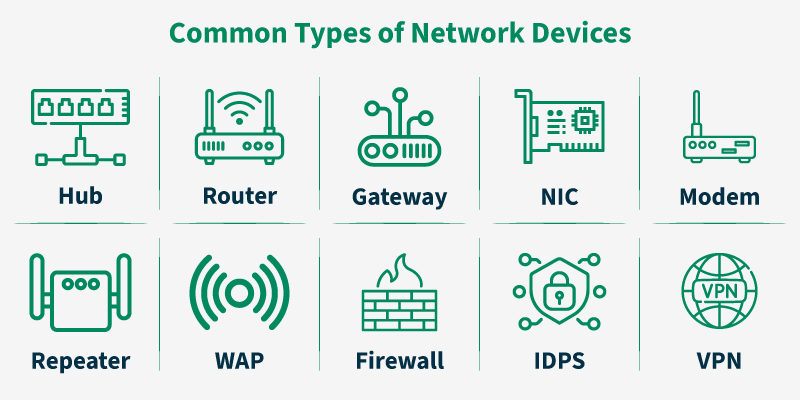 ### Hub, Switch, and Router **Hub (Layer 1) — the dumb broadcaster:** Takes anything on one port and sends it out of ALL other ports. No intelligence. Everyone sees everyone's traffic — a security nightmare. Completely obsolete today, but understanding it helps you appreciate switches. **Switch (Layer 2) — the smart director:** Learns the MAC address of every device on each port. Sends data only to the correct port. Like a receptionist who knows exactly which room each guest is in. ``` Device A sends to Device C via Switch: Device A → SWITCH (checks MAC table) → Device C only Device B and D do NOT receive the data ``` Switches are in every office, every data centre, every cloud. Fast, efficient, secure. **Router (Layer 3) — the network connector:** Connects different networks together. Reads IP addresses to determine the best path for data, even across the entire internet. Maintains a routing table — "to reach network X, send packets via Y." ``` Your home network (192.168.1.x) ↓ ROUTER (reads IPs, decides where to forward) ↓ Your ISP → Internet → Destination ``` Your home Wi-Fi box is a router + switch + Wi-Fi access point all in one device. ### Device Comparison Table | Device | OSI Layer | Identifies By | Used For | |---|---|---|---| | Hub | Layer 1 | Nothing — broadcasts all | Obsolete | | Switch | Layer 2 | MAC address | Connecting devices locally | | Router | Layer 3 | IP address | Connecting networks | | Firewall | Layer 3-7 | IP, Port, Content | Security control | | Load Balancer | Layer 4-7 | IP, Port, URL | Distributing traffic | ### Firewalls — Your Network's Security Guard A firewall decides what traffic is allowed in and out. Think of it as a bouncer — it checks every packet trying to enter or leave and decides based on rules who gets through. In DevOps you configure firewalls constantly. **Types of firewalls:** - **Packet Filtering** — checks source IP, destination IP, port, protocol. Simple yes/no. Fast but does not look inside the packet. - **Stateful Inspection** — tracks active connections. Knows if a packet belongs to an established conversation or is suspicious new traffic. Used in most modern firewalls including AWS Security Groups. - **Next-Generation Firewall (NGFW)** — everything above plus malware scanning, application awareness, encrypted traffic inspection. AWS WAF is an example. #### Firewall Commands on Linux ```bash # UFW — Ubuntu's easy firewall interface sudo ufw status # Is it on? What rules exist? sudo ufw enable # Turn it on # CRITICAL: allow SSH before enabling or you lock yourself out sudo ufw allow 22 # SSH sudo ufw allow 80 # HTTP sudo ufw allow 443 # HTTPS sudo ufw allow from 192.168.1.0/24 to any port 22 # SSH from local network only sudo ufw deny 3306 # Block MySQL from internet (internal only) sudo ufw status verbose # See all rules with details sudo ufw status numbered # Rules with numbers sudo ufw delete 3 # Delete rule number 3 # firewalld — CentOS/RHEL systems sudo firewall-cmd --permanent --add-service=http sudo firewall-cmd --permanent --add-service=https sudo firewall-cmd --reload sudo firewall-cmd --list-all ``` -
A protocol is a set of rules two devices agree to follow so they can communicate. Think of it like a language — you can only have a conversation if both people speak the same one. Computers can only exchange data if they use the same protocol. Every tool in your DevOps work runs on protocols. HTTP powers APIs. SSH secures server access. DNS resolves domain names. HTTPS encrypts everything. ### When You Run curl, Every Layer Has a Protocol ```bash curl https://api.example.com/users ``` What is actually happening: ``` Layer 7 (Application): HTTP — formats your GET request Layer 6 (Presentation): TLS — encrypts the request (HTTPS) Layer 4 (Transport): TCP — ensures reliable delivery on port 443 Layer 3 (Network): IP — routes packets to the server's IP address Layer 2 (Data Link): Ethernet — sends frames to your router's MAC Layer 1 (Physical): Electrical signal through cable / radio through air ``` Every layer adds a header on the way down (encapsulation). At the receiving end, each layer strips its header on the way up (decapsulation). ### Protocol Quick Reference | Protocol | Port | Transport | Encrypted? | Used For | |---|---|---|---|---| | HTTP | 80 | TCP | No | Web pages, APIs | | HTTPS | 443 | TCP | Yes (TLS) | Secure web, secure APIs | | SSH | 22 | TCP | Yes | Remote server access | | FTP | 21 | TCP | No | File transfer (legacy) | | SFTP | 22 | TCP | Yes | Secure file transfer | | DNS | 53 | UDP/TCP | No (default) | Name resolution | | DHCP | 67/68 | UDP | No | Auto IP assignment | | SMTP | 25/587 | TCP | Optional | Sending email | | IMAP | 143/993 | TCP | Yes (993) | Reading email | | MySQL | 3306 | TCP | Optional | Database | | PostgreSQL | 5432 | TCP | Optional | Database | | Redis | 6379 | TCP | Optional | Cache | | ICMP | None | — | No | ping, traceroute | ### HTTP Deep Dive — What DevOps Engineers Must Know HTTP is the protocol you interact with most. Every API test, every health check, every nginx config, every load balancer log uses it. #### HTTP Methods ``` GET → Retrieve data "Give me the list of users" POST → Create data "Create a new user" PUT → Replace data "Replace user 5 with this" PATCH → Partially update "Just update the email of user 5" DELETE → Remove data "Delete user 5" ``` #### HTTP Status Codes — Read Them Like a Language ``` 2xx — Success 200 OK → request succeeded 201 Created → new resource created 204 No Content → success, nothing to return (common for DELETE) 3xx — Redirect 301 Moved Permanently → new permanent URL 304 Not Modified → cached version is still valid 4xx — Client Error (you did something wrong) 400 Bad Request → malformed request — check your JSON/params 401 Unauthorized → you need to authenticate first 403 Forbidden → authenticated but not allowed 404 Not Found → that resource does not exist 429 Too Many Requests → rate limited — slow down 5xx — Server Error (the server broke) 500 Internal Server Error → something crashed — check server logs 502 Bad Gateway → nginx got bad response from upstream app 503 Service Unavailable → server overloaded or down 504 Gateway Timeout → upstream app too slow to respond ``` When you see 502: nginx is fine, the app behind it is broken. When you see 504: nginx is fine, the app is responding but too slowly. These codes tell you exactly which layer to investigate. -
These are the commands you will use every single day. Learn them properly now and you will solve problems in 5 minutes that would otherwise take hours. Each tool answers a specific question: ``` "Is this host reachable?" → ping "What is the IP for this domain?" → dig / nslookup "Is this port open and listening?" → ss / netstat "What is the HTTP response?" → curl "Where does the network path fail?" → traceroute "What is my IP / routing?" → ip addr / ip route "Download this file" → wget / curl ``` ### The Systematic Debugging Approach ``` Something cannot connect? Work through this in order: 1. ping server-ip → network path works? YES → service level. NO → routing/firewall 2. dig hostname → DNS resolves? YES → DNS fine. NO → check /etc/resolv.conf 3. ss -tulpn | grep :PORT → port listening? YES → firewall maybe. NO → start the service 4. curl -v http://server:port → what does the app actually say? 5. sudo ufw status → what is the firewall allowing? ``` Work through these five steps and you will find 95% of problems. Stop guessing and start being systematic. ### ping — Test if a Host is Reachable ```bash ping google.com # Continuous ping until Ctrl+C ping -c 4 google.com # Send exactly 4 packets then stop ping -c 1 192.168.1.100 # Quick one-shot: is this host alive? ping -W 2 192.168.1.100 # Timeout after 2 seconds per packet # Reading the output: # 64 bytes from 142.250.185.46: icmp_seq=1 ttl=118 time=12.4 ms # ↑ round trip time # 4 packets transmitted, 4 received, 0% packet loss # ↑ 0% is good. High % = network problem. ``` Ping tells you the host is reachable (Layer 3 works) and how fast/reliable the connection is. It does NOT tell you whether a specific port or service is open. ### netstat & ss — See What Ports Are Open ```bash ss -tulpn # All listening ports with process names ss -tulpn | grep :80 # Is anything on port 80? ss -tulpn | grep :3000 # Is my Node.js app running? ss -tulpn | grep :5432 # Is PostgreSQL listening? sudo lsof -i :80 # Which process is using port 80? # Reading the output: # tcp LISTEN 0.0.0.0:80 0.0.0.0:* users:(("nginx",pid=1234)) # ↑ port ↑ process name # # 0.0.0.0:80 = listening on ALL interfaces → reachable from outside (good) # 127.0.0.1:80 = listening on localhost only → NOT reachable from outside (bad) ``` Common trap: your app shows as running but is not reachable externally. Check `ss -tulpn` — if it shows `127.0.0.1:3000` your app is only listening on localhost. Fix it by telling your app to bind to `0.0.0.0` instead. ### curl — Make HTTP Requests from Terminal ```bash curl https://example.com # GET — show the response body curl -s https://example.com # Silent — no progress bar curl -I https://example.com # Headers only curl -v https://example.com # Verbose — shows everything (best for debugging) # Get just the HTTP status code curl -o /dev/null -s -w "%{http_code}" https://example.com # Output: 200 (or 404, 500, 502 etc.) # API calls curl -X POST https://api.example.com/users \ -H "Content-Type: application/json" \ -H "Authorization: Bearer your-token" \ -d '{"name": "Daksh", "email": "daksh@example.com"}' # Download files curl -O https://example.com/file.tar.gz # Save with original name curl -L https://short.url/abc # Follow redirects # Health check in a deploy script if curl -sf https://myapp.com/health > /dev/null; then echo "App is healthy" else echo "HEALTH CHECK FAILED" exit 1 fi ``` ### traceroute — Follow the Path to a Server ```bash traceroute google.com # Trace the full path traceroute -n google.com # Numeric output — faster # Reading the output: # 1 192.168.1.1 1.2 ms = your home router # 2 10.50.0.1 5.3 ms = your ISP's first router # 3 * * * = firewall blocking ICMP (normal, not broken) # 4 142.250.185.46 12 ms = destination reached mtr google.com # Live updating view (combines ping + traceroute) ``` When traceroute stops at a specific hop, that is where the problem is. If it stops at hop 1, your local network. If it stops midway, your ISP or a network between you and the server. ### ip & route — Check and Configure Networking ```bash ip addr show # All interfaces and IP addresses ip addr show eth0 # Just eth0 ip link show # Interface status (UP or DOWN) ip route show # Routing table # Reading the routing table: # default via 10.0.1.1 dev eth0 # ↑ "for everything else, send it to 10.0.1.1 (the gateway)" # 10.0.1.0/24 dev eth0 proto kernel # ↑ "for 10.0.1.x, send directly out of eth0" ip route | grep default # What is my gateway? ip addr | grep "inet " | grep -v 127 # My non-loopback IPs ``` ### wget — Simple File Downloads ```bash wget https://example.com/file.tar.gz # Download to current directory wget -O custom-name.zip https://example.com/f # Custom filename wget -c https://example.com/huge-file.iso # Resume a broken download wget -qO- https://get.docker.com | bash # Download and pipe to bash (install script pattern) ``` -
Most beginners try to skip networking. It feels abstract and full of confusing words. But here is the truth — almost eve...
The OSI model is the most important framework to understand in networking. It does not describe a specific technology — ...
Every device on a network needs an address. Without addresses, there is no way to know where to send data. This is criti...
Network devices control how data flows through a network. Understanding them helps you understand cloud architecture — b...
A protocol is a set of rules two devices agree to follow so they can communicate. Think of it like a language — you can ...
These are the commands you will use every single day. Learn them properly now and you will solve problems in 5 minutes t...
Security is not something you add later — it is built into how you set things up from day one. The most common productio...
The difference between a junior and a senior engineer is not knowing more commands — it is being systematic rather than ...
These questions reflect actual problems you will face when managing servers, cloud infrastructure, and deployments. 1. T...
Aligns directly with DevOps, Site Reliability (SRE), and Platform Engineering job descriptions.